Onboarding
Pics to Description Onboarding
NEW Feature: You can now skip previously processed products during bulk operations, improving efficiency and reducing duplicate processing. This update applies to products processed on or after August 19, 2025. Earlier processed products are not supported.
Getting Started
How It Works
Use AI Vision technology to analyze images and create accurate, context-aware product descriptions.
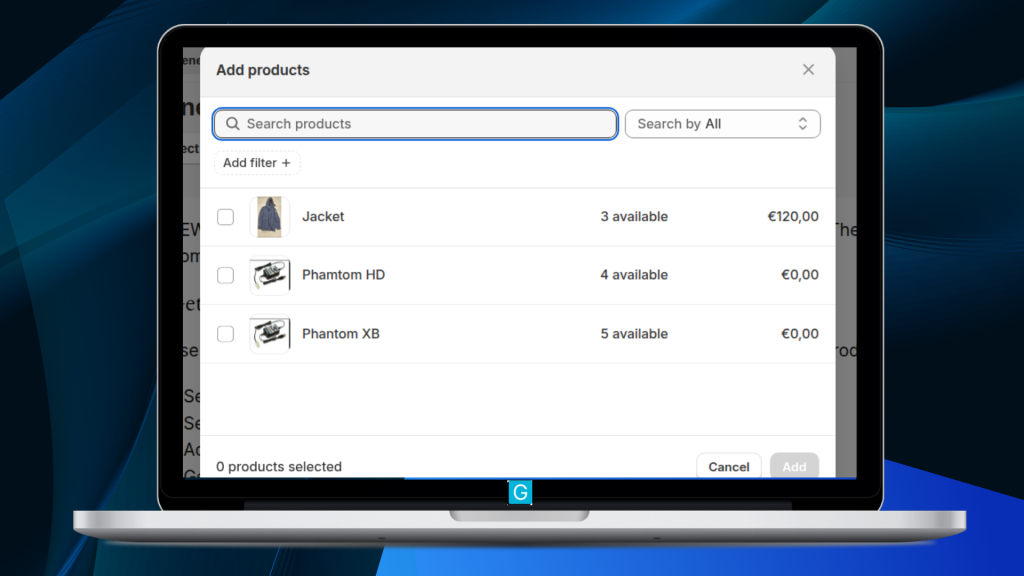

1. Select a product
Choose the product you want to update.
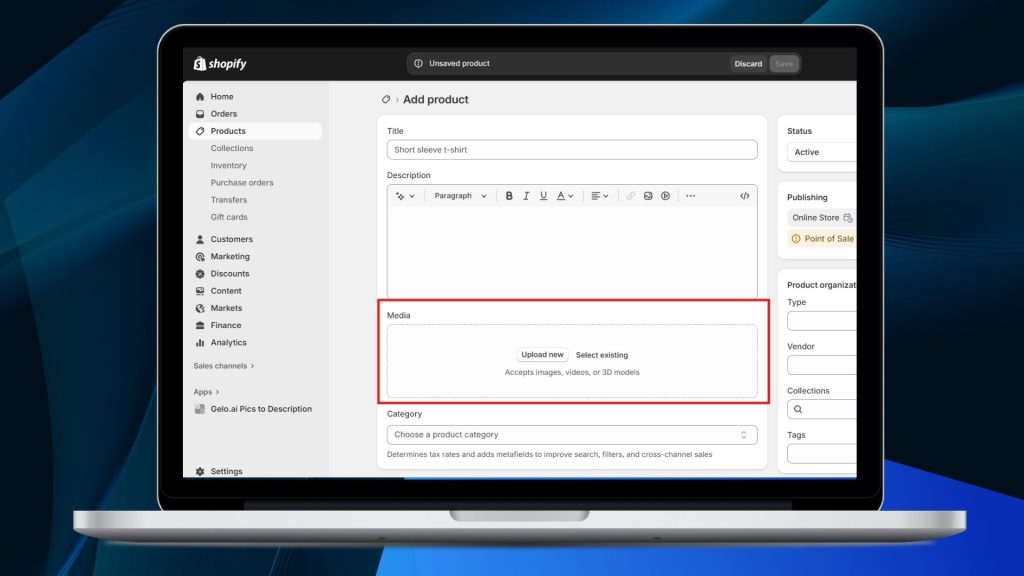
2. Select images
Upload or choose the product images for AI analysis.
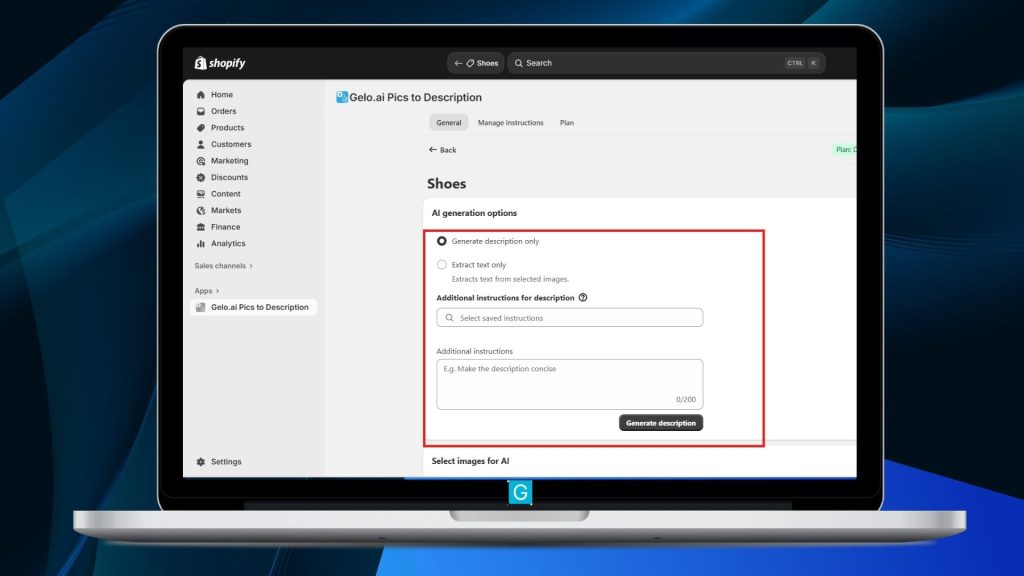
3. Add additional instructions (optional)
Provide specific guidelines such as tone, keywords, or target audience.
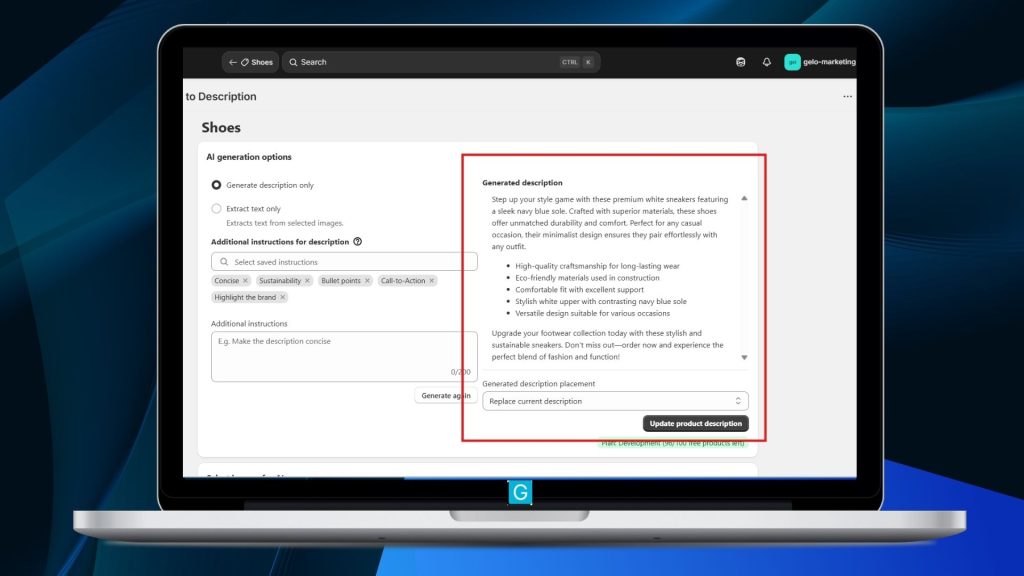
4. Generate content
Let the AI create optimized product descriptions based on your images and instructions.
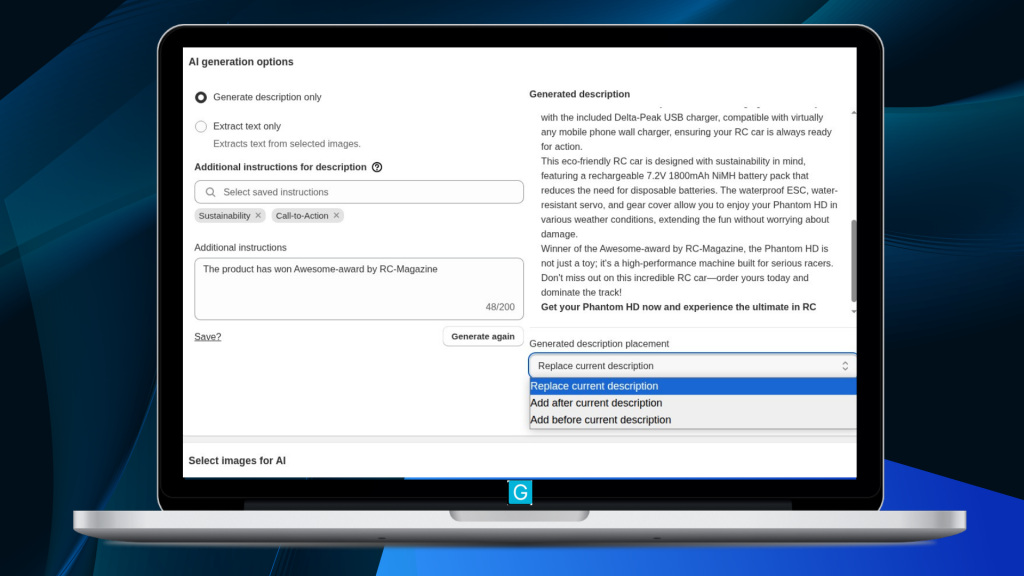
5. Review and Refine
Review the output and re-generate if needed.
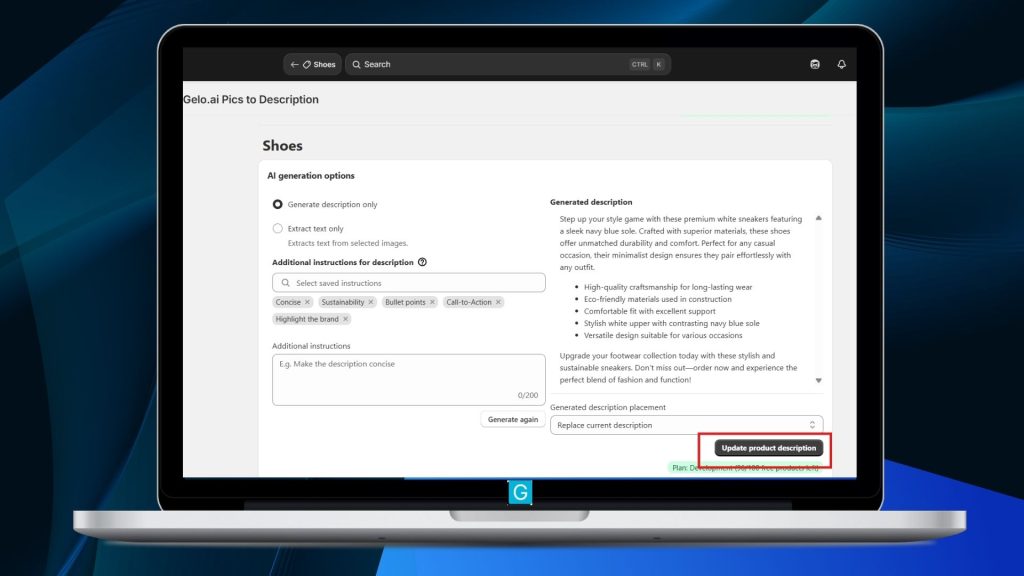
6. Update the product description
Apply the generated content by replacing, prepending, or appending it to the existing description.
Get Started
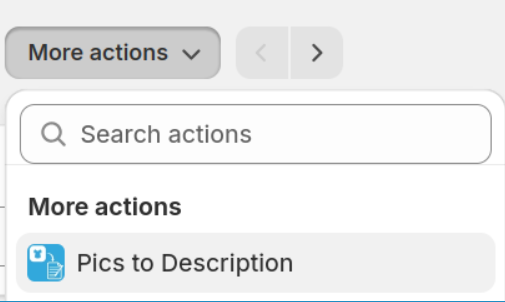
Quick Launch From Product Page
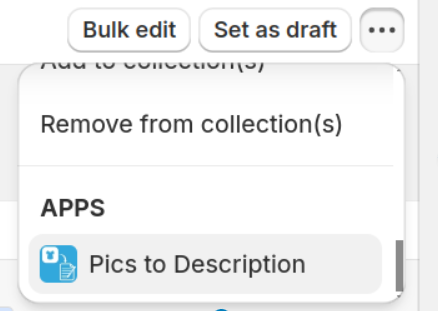
Quick Launch from Product Page “More actions” menu

Trusted by 20,000+ Users Creating Product Content with AI
Bulk action
Bulk Selected Products
Quick Launch from Product Page “More actions” menu
1. Open Shopify Products View
2. Filter and select desired products
3. Select Pics to Description from the menu under the three dots
Trusted by 20,000+ Users Creating Product Content with AI
Whole collection
Selected Collections
Bulk action is available in Premium and Ultimate plans.
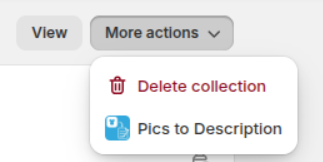
1. Open collection page from Shopify admin (not just the collections grid, but actual collection admin page)
2. Select Pics to Description from More Actions menu
Trusted by 20,000+ Users Creating Product Content with AI
Frequently Asked Questions
Could you add an option to use the current product description as a source of data for the new product description?
This is actually how the app works already: it uses product name, current description and image(s) as source data.
What pictures are used in bulk operation?
The bulk operation uses all of the product’s pictures.
Power Your Product Content with AI
Have questions or feedback?
Experiencing an issue?
Reach out to us at support@gelo.ai or call/text our support team — we’re happy to help.