
Learn how to use Gelo.ai tools,
create better product descriptions, and speed up your workflow.
How to generate Product Descriptions – Single / Individually
How to Generate Product Descriptions – Collection / Bulk
How Pics-to-Description works
Gelo.ai Pics-to-Description — Complete How-To Guide
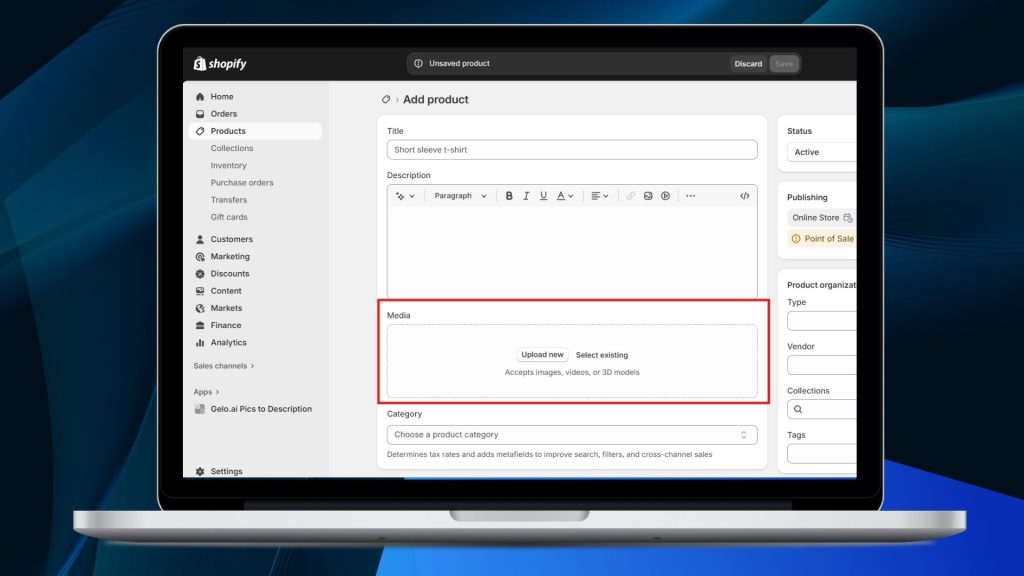
1. Select and Upload Your Product Image
Choose the product photo you want to use. Make sure the image clearly shows the item for best results.
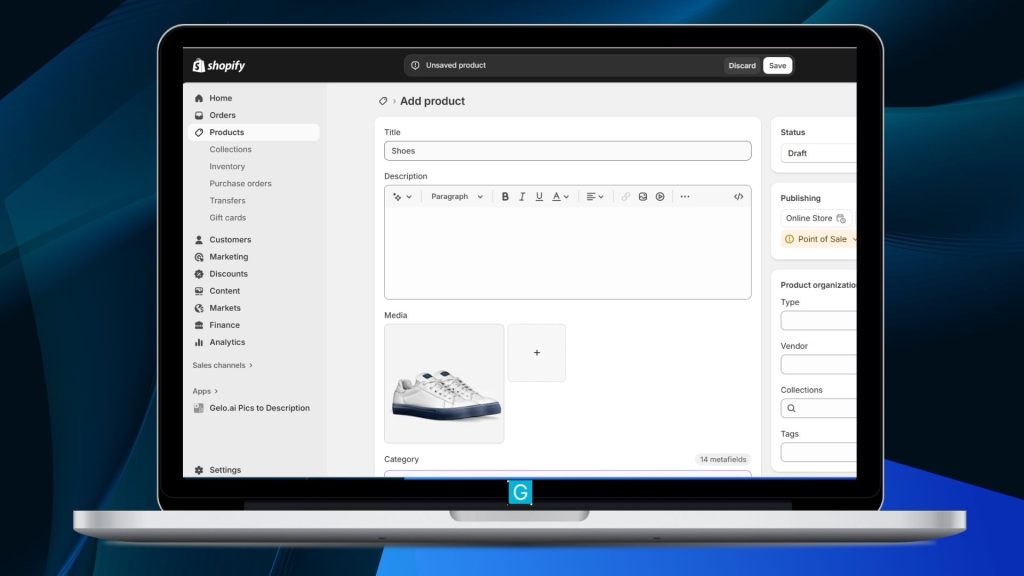
2. Add a Product Title & Save the Product
Enter your product name, then click Save to proceed.
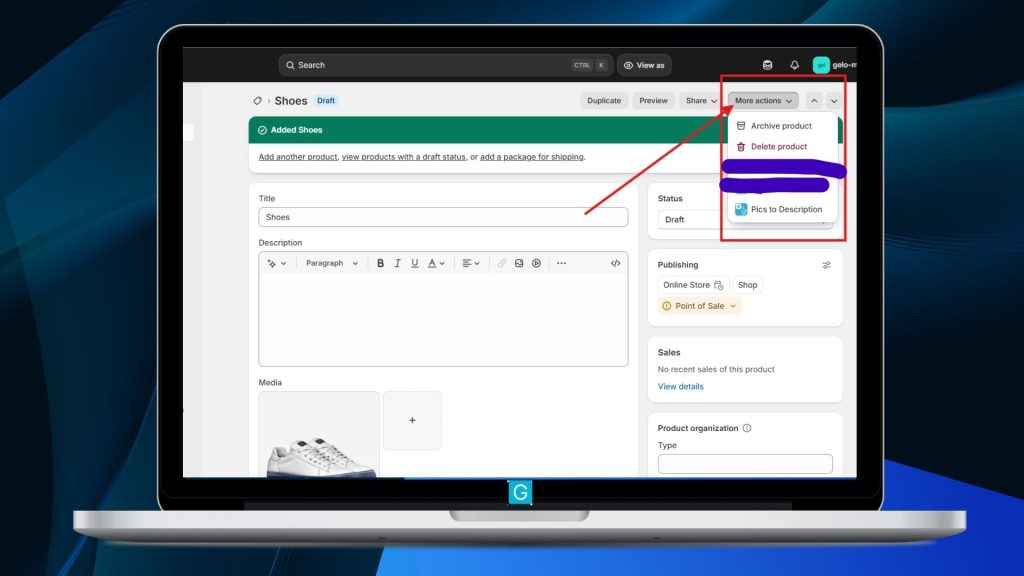
3. Open “Pics to Description”
Once the product is saved, go to the upper-right corner of your screen, click More Actions, and select Pics to Description.
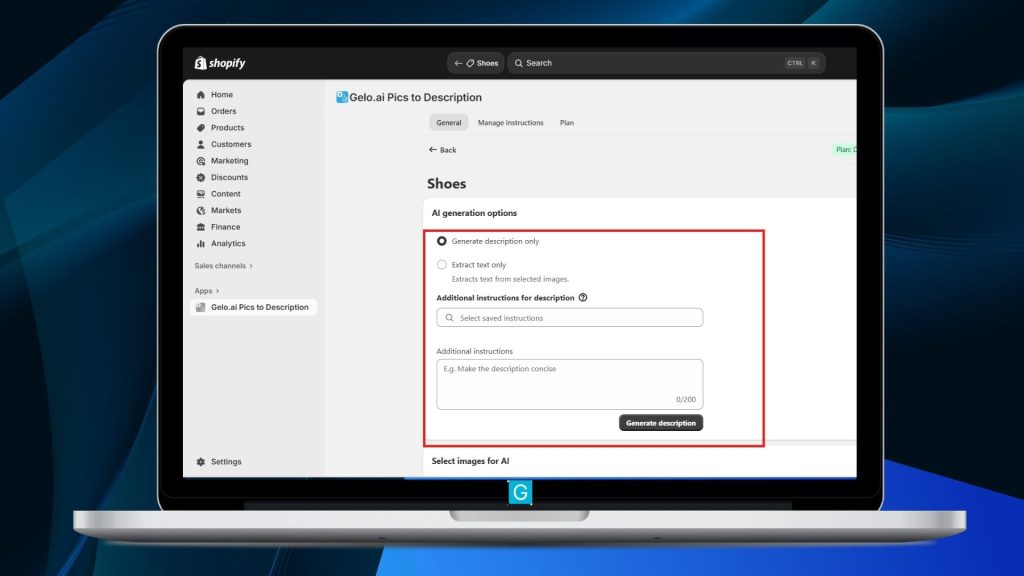
4. Choose Your Mode
You can pick from:
- Generate Descriptions — create full product descriptions based on your images
- Extract Text Only — pull text found inside your image (labels, packaging, etc.)
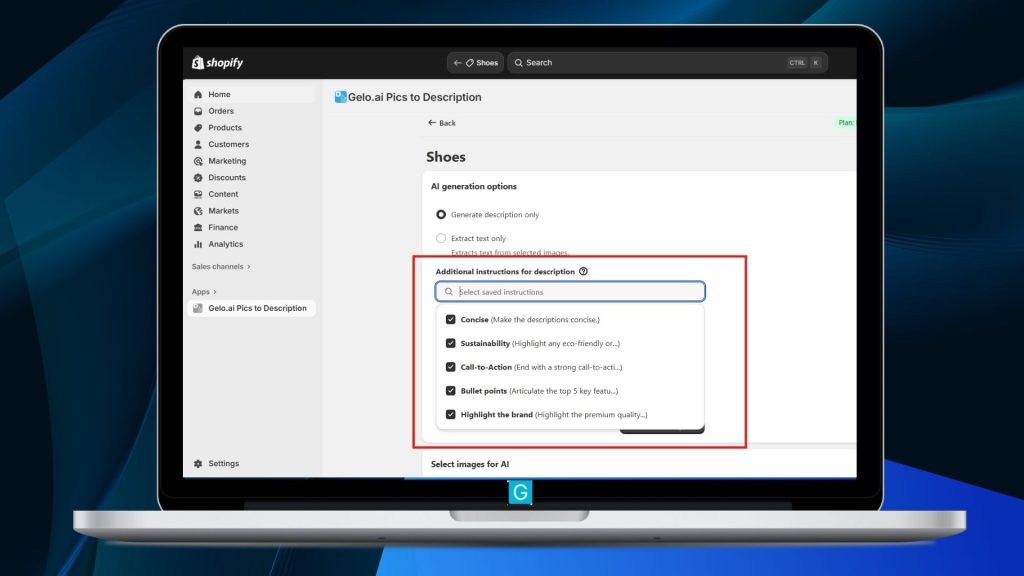
5. Add Optional Instructions (Recommended)
Include extra details such as tone, keywords, features, or your preferred writing style.
Example: “Make it SEO-friendly, concise, and in a friendly tone.”
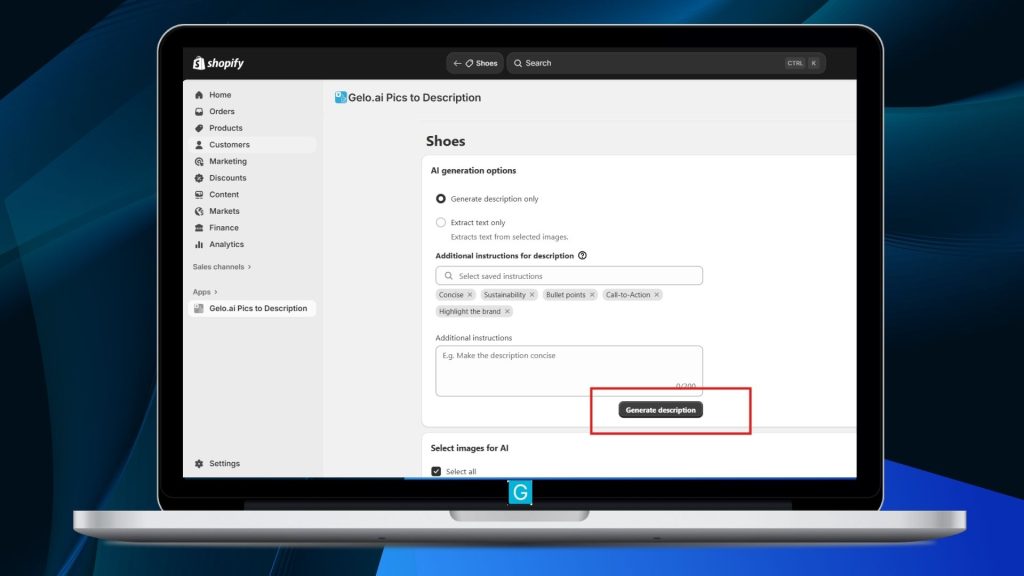
6. Click “Generate Description”
Gelo.ai will analyze your image and create a polished, ready-to-use description.
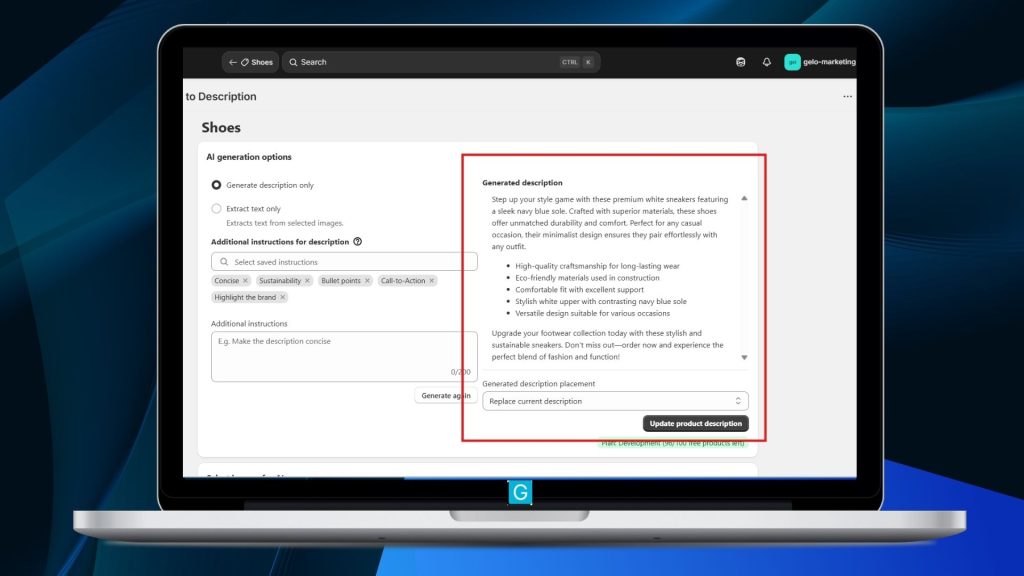
7. Review & Choose How to Apply the Description
You can:
- Regenerate if you want a different version
- Replace your existing description
- Add the new content above or below your current text
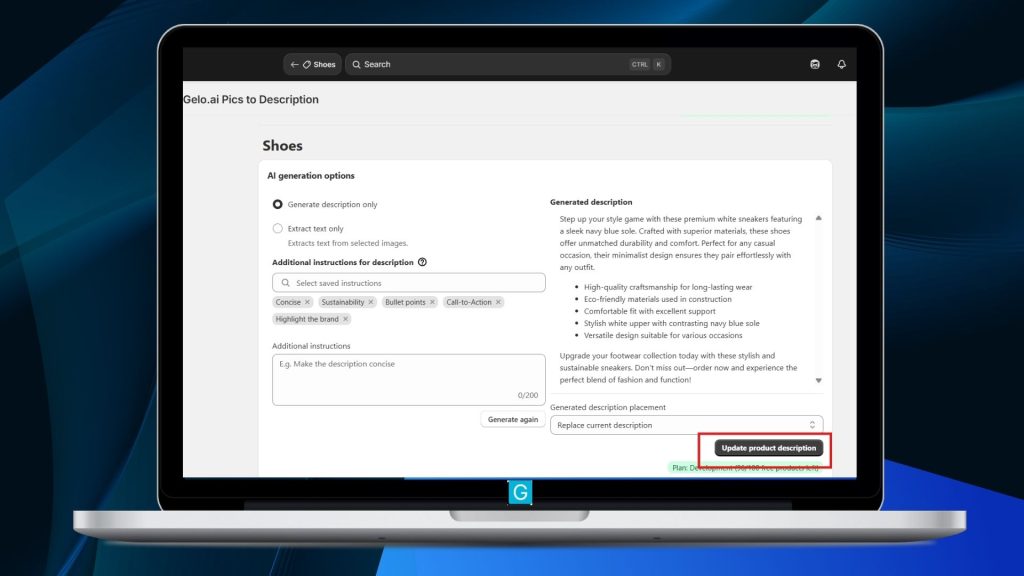
8. Click “Update Descriptions”
Confirm your choice to apply the generated copy to your product listing.
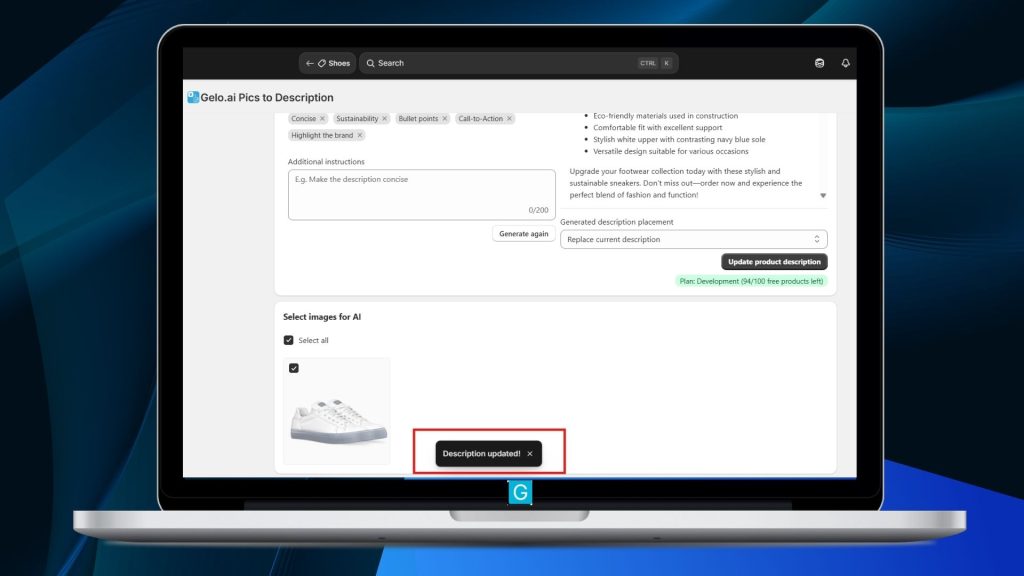
9. Look for the Confirmation Message
A notification will appear in the center (lower part) of your screen saying “Description Updated.”
You can now refresh or view your product to see the updated description.
Need more help?